This guide shows how to open and close trades through the gains.trade interface. To open and close trades on Gains you will need:
  1. A Web3 wallet, such as MetaMask, connected to Gains.
  2. The network’s gas token in that wallet to pay for transaction fees (e.g. ETH on Arbitrum/Base, POL on Polygon).
  3. A supported collateral in that wallet. See Trade Collaterals for availability per chain.
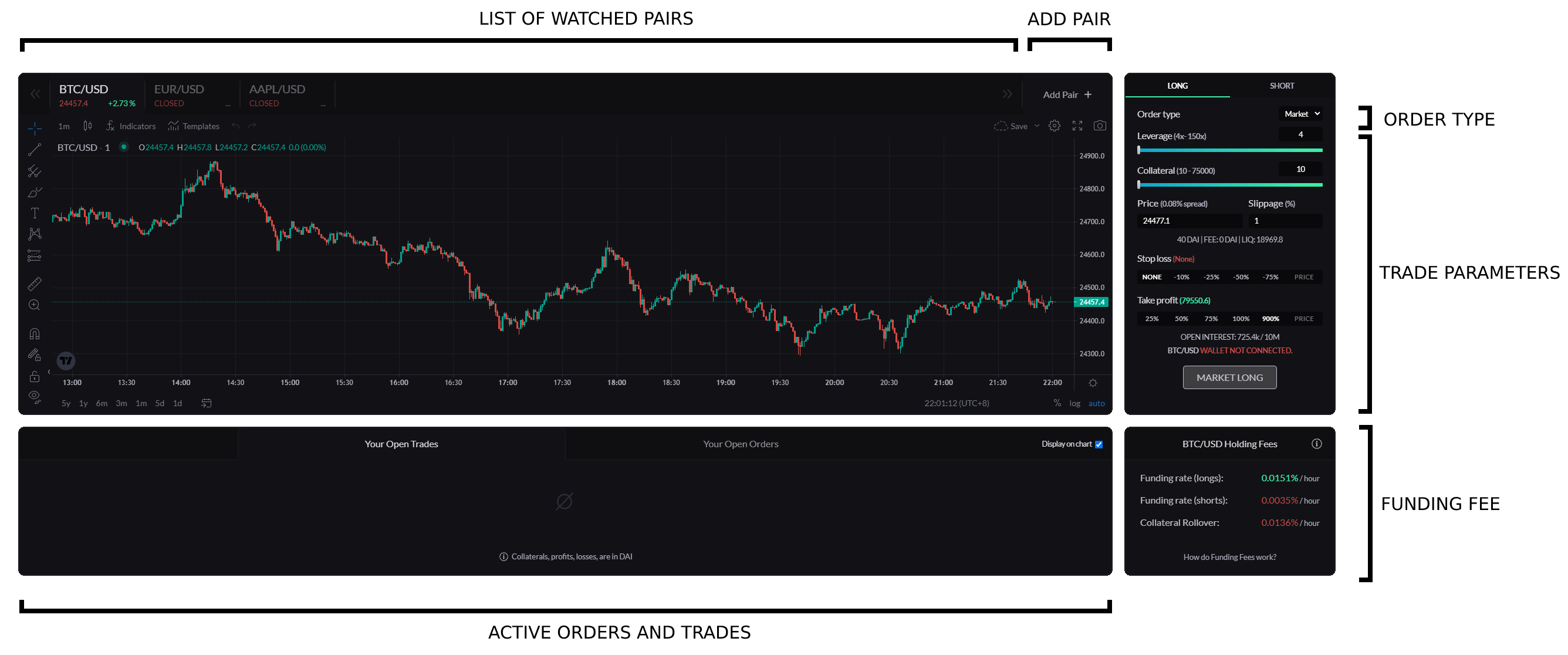
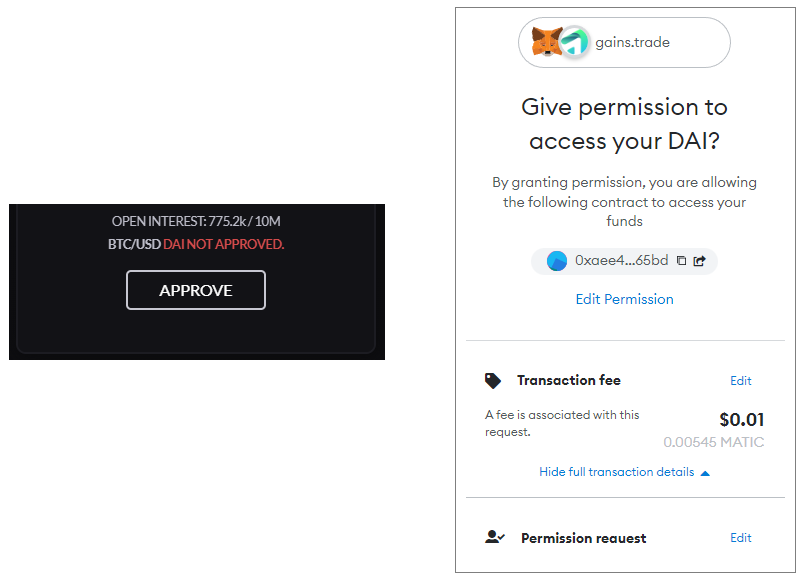
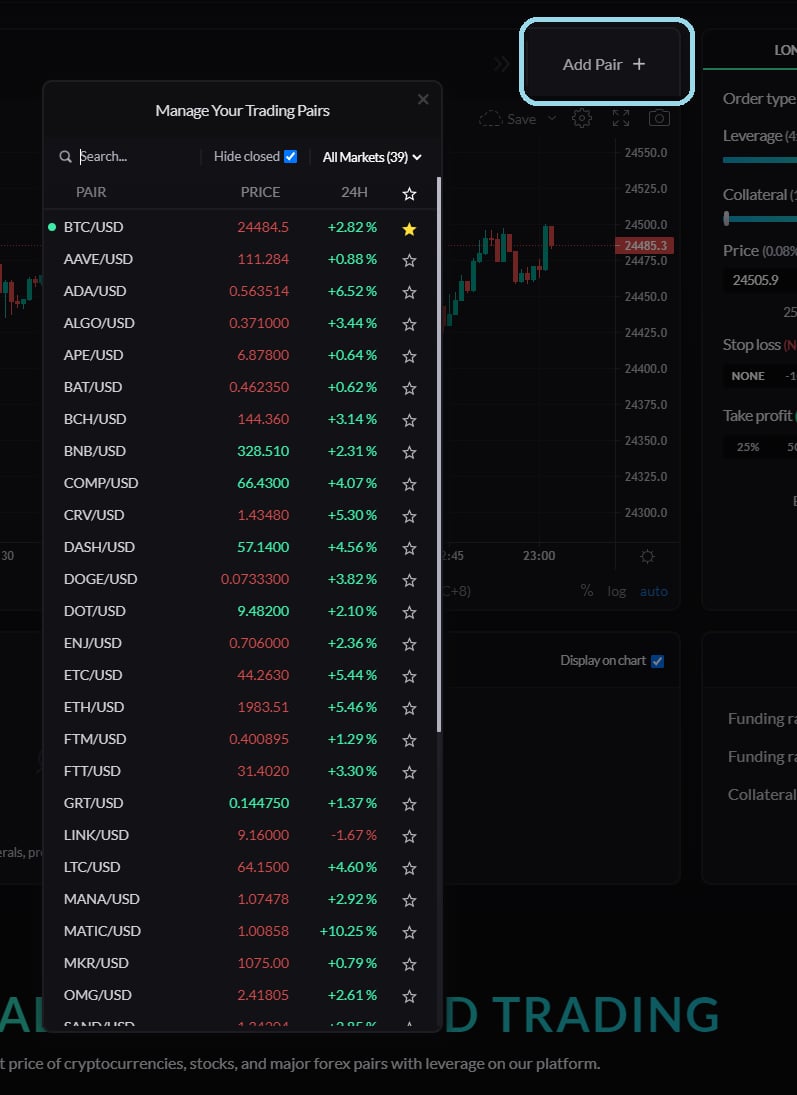
Interface Overview These are the main areas of the trading interface used in this guide. Opening a trade 1. Go to our platform. 2. Click Connect Wallet in the top right. You may need to unlock your wallet or refresh the page before the interface detects it. 3. If this is your first trade with a collateral, approve the contract to use that collateral. Click Approve and submit the transaction. Approve to allow the contract to use your collateral. 4. Use Add Pair + to select the pair you want to trade. Favorite it if you want to save it in your trading interface. Hide closed hides forex and commodities markets while they are closed. 5. Now, you can set your trade parameters:
  1. Trade type and direction.
    1. Market: opens immediately at the market price plus spread.
    2. Limit: opens long below the current price or short above the current price once the threshold is reached.
    3. Stop Limit: opens long above the current price or short below the current price once the threshold is reached.
  2. Collateral: the maximum amount you risk if liquidated. Collateral multiplied by leverage must exceed the minimum position size, which can vary by market and network. The interface shows the current minimum for your selected pair and collateral.
  3. Leverage: increases your exposure to price movement.
  4. Max slippage: cancels a market order if price moves too far before the order opens.
  5. Stop loss and take profit: optional levels that help manage risk. If no stop loss is set, the trade can be liquidated when it reaches the liquidation threshold.
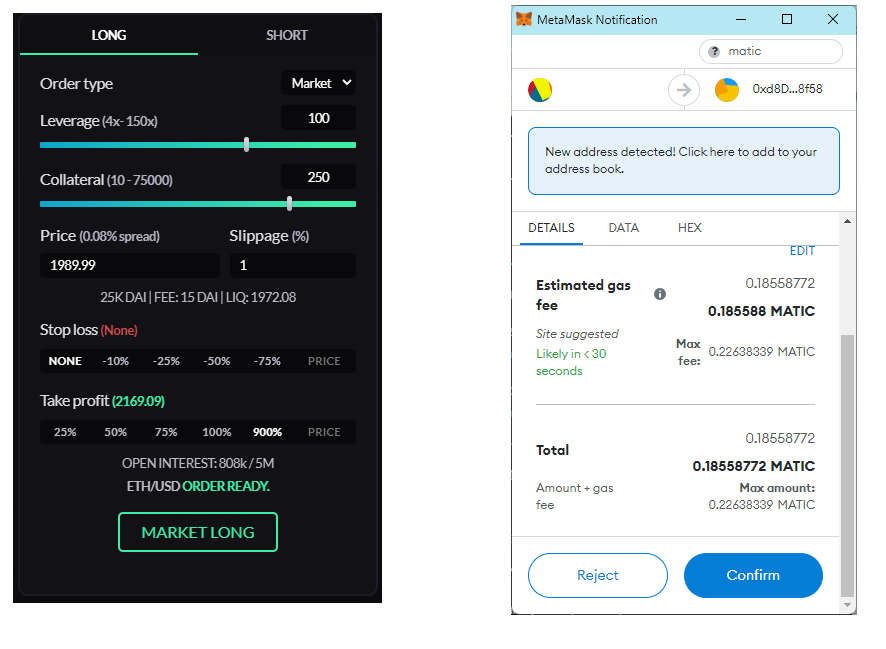
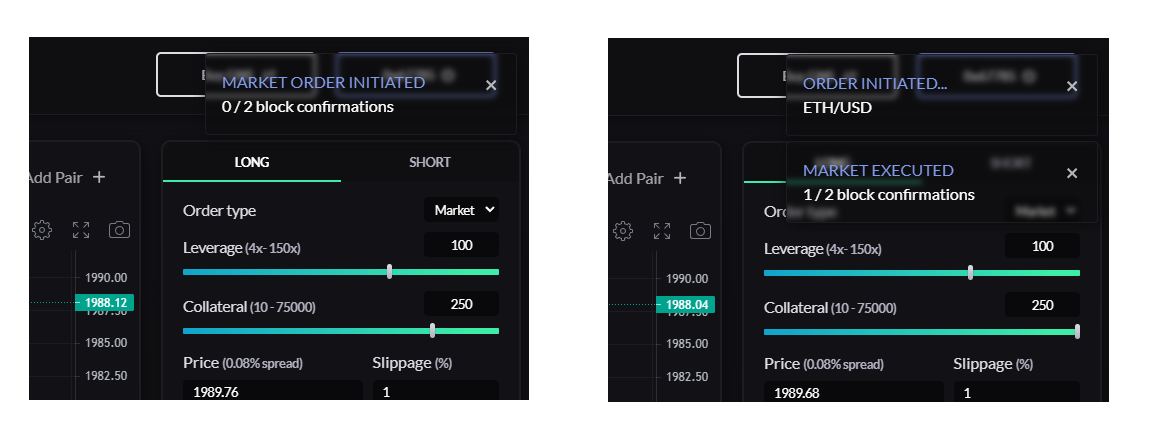
Trade parameters and MetaMask confirmation. Click the order execution button, which displays the order type and direction. In this example, it says MARKET LONG. Your wallet opens a transaction confirmation popup. Higher gas is suggested automatically to help the trade execute quickly. After the transaction is submitted, the interface shows the number of confirmations required before the trade appears. Once 2 blocks have passed, it is displayed under Your Open Trades. Order Initiated: This is the moment that your request to execute an order reaches the network.
Executed: This is the moment your trade is executed, when our Chainlink DON returns the current price. In the below example the price has just been returned.
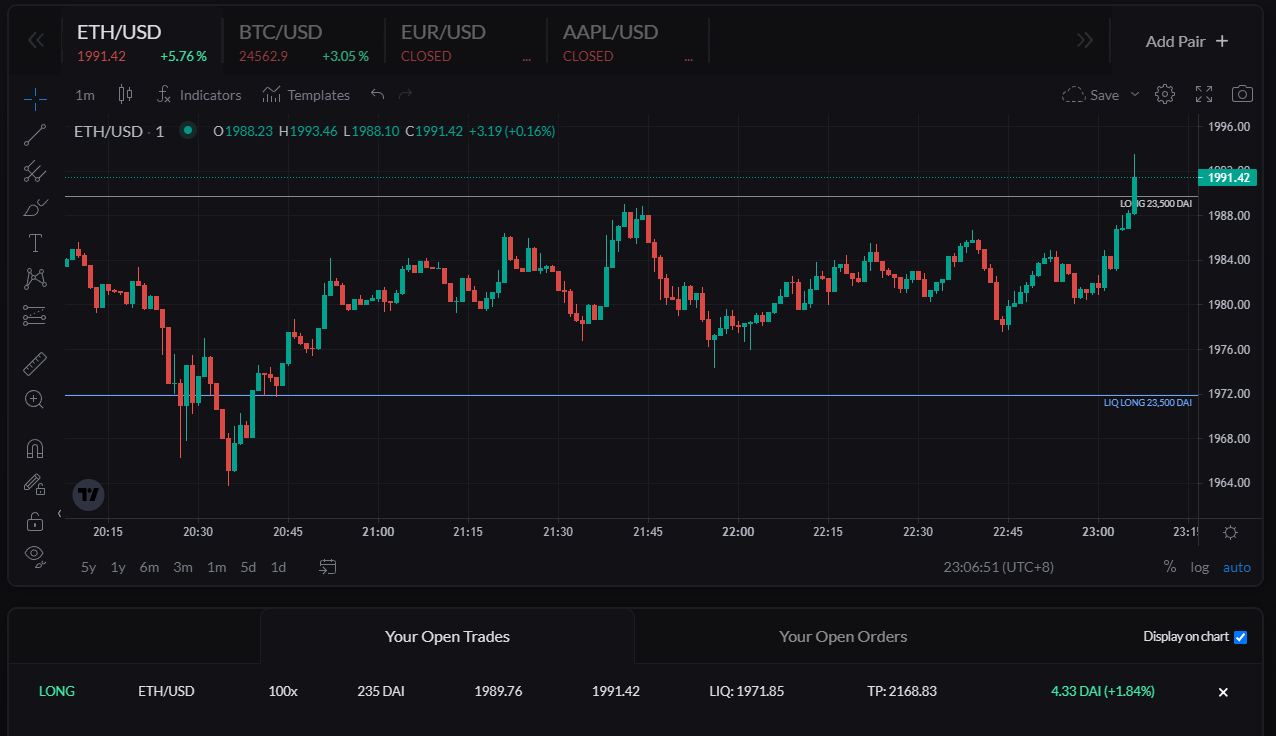
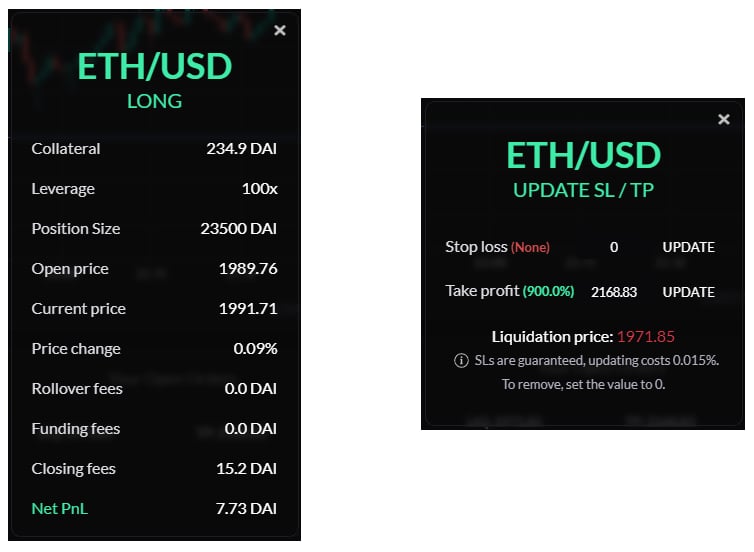
See the FAQ for more on block confirmations. First the order initiates, then it is executed. Viewing the details of an Open Trade & Updating TP/SL Now your trade is open, you can view its details by clicking on it under Your Open Trades. You can also see the liquidation price marked in blue on the chart, and if you have them set you will see TP/SL lines in green/red respectively. An active trade in Your Open Trades. By clicking on your trade, you can view its details. If you click on the TP/SL price you will see the prompt to update these - you can input the price desired to TP/SL and it will show you what % that would be in relation to your collateral. If you don’t have a TP/SL it will show “None”. The displayed Net PnL is what you will receive back to your wallet at the moment of closure registering on chain. See Fees & Spread for more details on fees. Closing a trade
  1. Click the X on the right side of your trade under Your Open Trades.

The X to the right will let you close your trade.
  1. Confirm in MetaMask to send the close transaction.
  2. Wait for trade closure confirmation. The final amount is sent to your wallet.
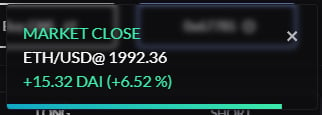
Closure of the trade.