
Five words to know first
With a 100 USDC long at 5x on BTC/USD, before fees:
A short is the mirror image: it gains when BTC falls, and is liquidated if BTC rises about 18%.
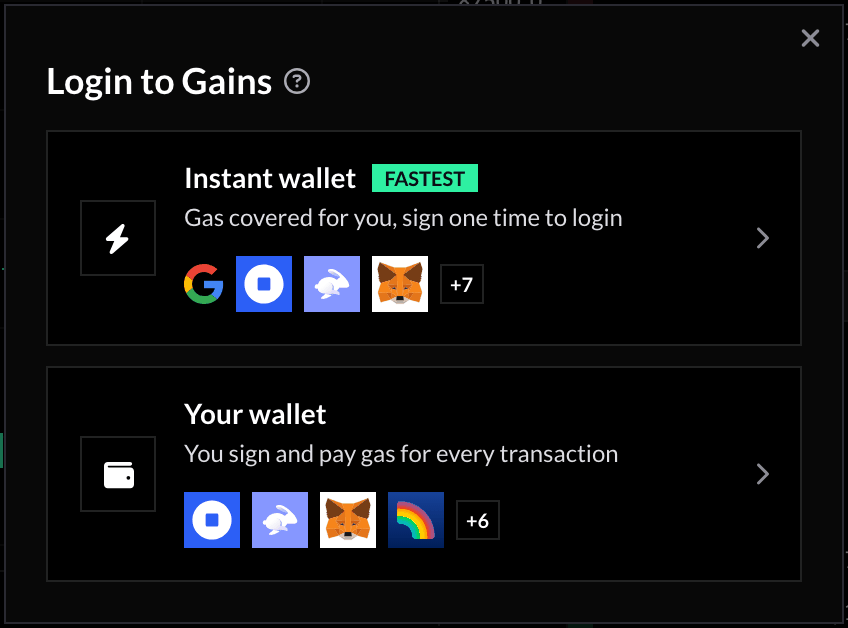
1. Log in
Click Login in the top right corner, and pick one of the two options:- Instant wallet, tagged Fastest: log in with Google or an email address. A wallet is created for you, Gains pays the network fees (gas), and no wallet window asks you to confirm each order. The simplest choice if you do not have a crypto wallet yet. You can also log in there with a wallet you already use: the gas is still covered, but that wallet asks you to confirm each action. See Gasless trading.
- Your wallet: connect MetaMask, Rabby or another wallet you already use. You confirm each transaction in it and pay the gas yourself, in ETH on Arbitrum. Switch the wallet to the Arbitrum network: until you do, the panel reads Select Arbitrum Network.
2. Add USDC
You trade with USDC on Arbitrum, the network the app opens on. Click Deposit in the top bar, or Get Funds at the bottom of the trading panel. Both open the same window:- Bridge / Swap turns crypto already in your wallet, on another network or in another token, into USDC on Arbitrum.
- Deposit buys it with a card, Apple Pay, Google Pay or a bank transfer. Where card purchase is not available, this tile shows your address to send USDC to instead.
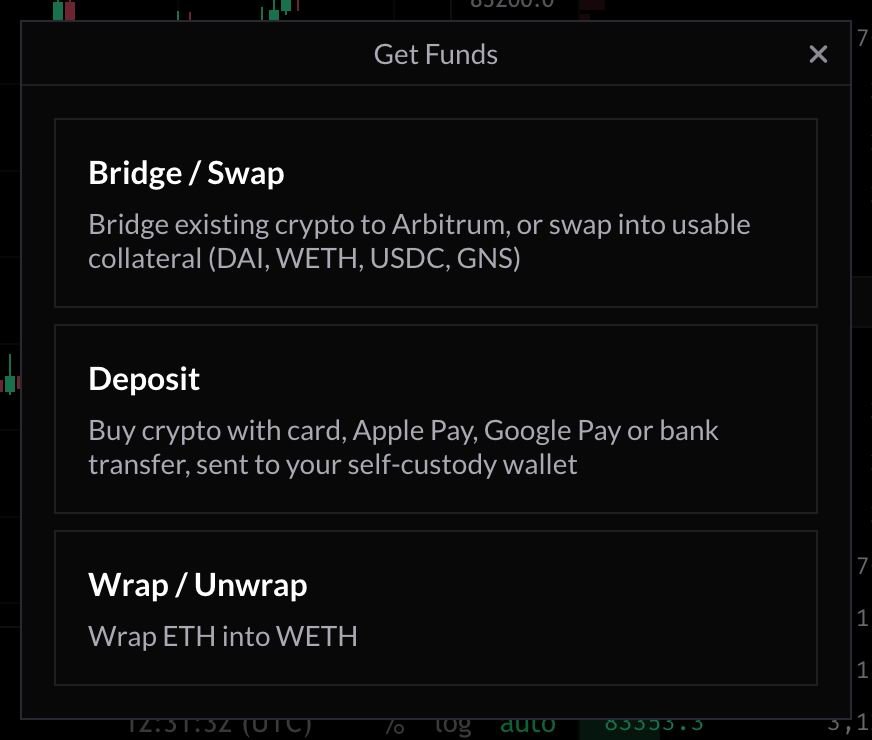
The Get Funds window.
3. Pick a market
The app opens on BTC/USD. To trade something else, click the pair name above the chart, then search for it or browse by category. Crypto trades around the clock. Forex, stocks, indices and commodities follow their market hours: outside them the panel reads The market is currently closed. A position you hold stays open while its market is closed, and nothing executes until it reopens, when the price can jump past your stop loss.4. Set up the trade
In the trading panel, from top to bottom:- Long or Short.
- Leverage: click the bar under Long and Short to change it. It starts at 5x, moved into the market’s allowed range (forex starts at 10x). It keeps its value when you switch market, so check it before each trade.
- Market, to open now at the current price.
- Position size: the size of the trade. Click the token next to the number to type it in USDC rather than in the token. Your collateral is the position size divided by the leverage.
- Stop Loss / Take Profit: open this row and pick a level. A stop loss is an order to close the trade at a loss you choose, a take profit at a gain you choose. The presets are a share of your collateral.
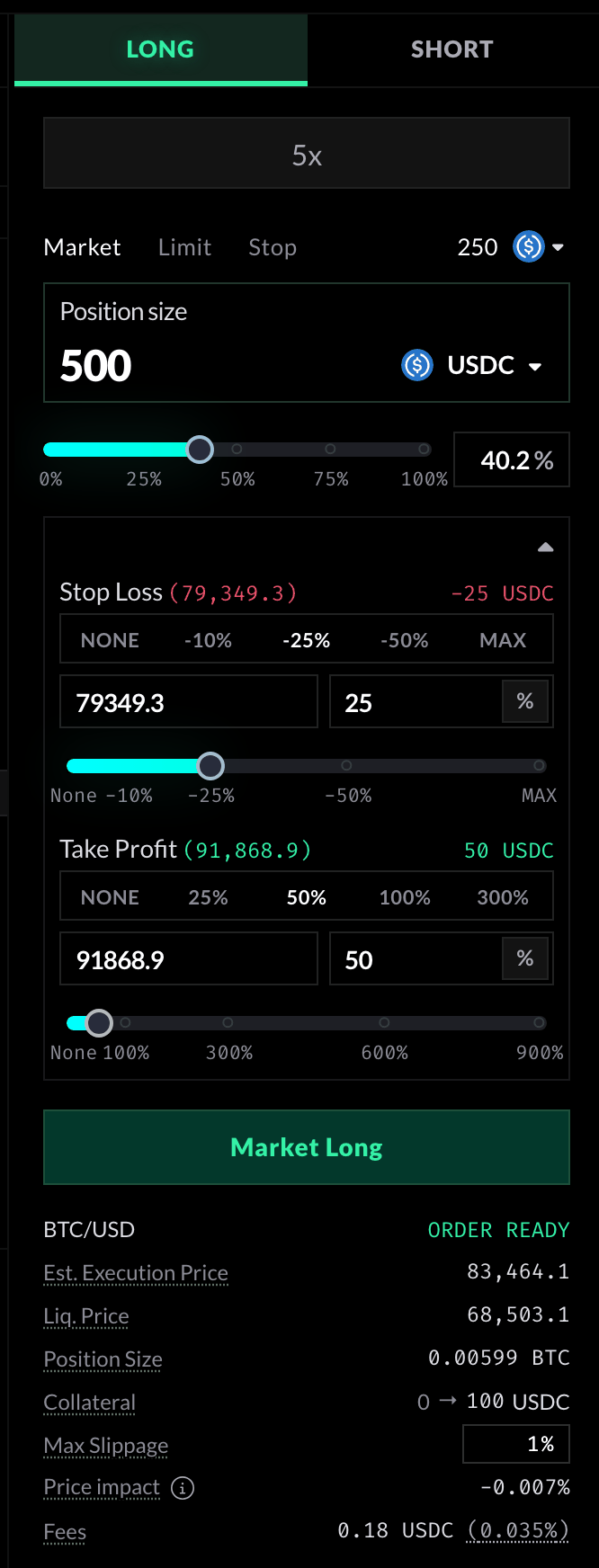
A 500 USDC long at 5x: 100 USDC of collateral out of a 250 USDC balance, a stop loss at -25% and a take profit at +50% of the collateral.
5. Open it
The first time, the button reads Approve. Click it to let Gains use your USDC; you do it once. With your own wallet, confirm it in the wallet. Then the button reads your order, here Market Long. Click it: a window sums the trade up. Check it and click Confirm. With your own wallet, confirm in the wallet too.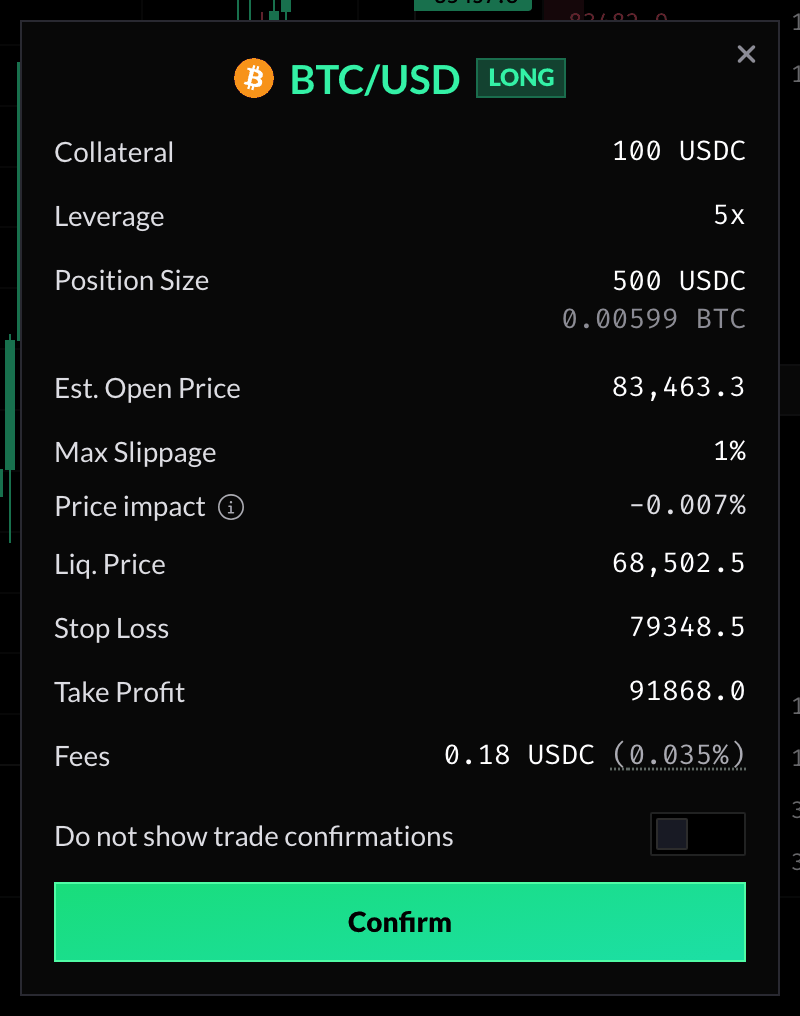
The order window.
6. Follow your position
Your trade appears under Positions, below the chart.
The example trade under Positions.
- Current/Liq. Price: the price now, and the price that would liquidate the trade. The liquidation price moves closer as holding fees add up.
- SL/TP: your stop loss and take profit. Click them to change them.
- Holding: the holding fees so far and their rate per hour, in green when you earn them rather than pay them.
- uPnL: the price move so far, before fees. The close window shows what you would actually get.
7. Close it
Click Close on the row. The window that opens is set to close the whole position. Check Receive, what comes back to your wallet, and click Close Trade.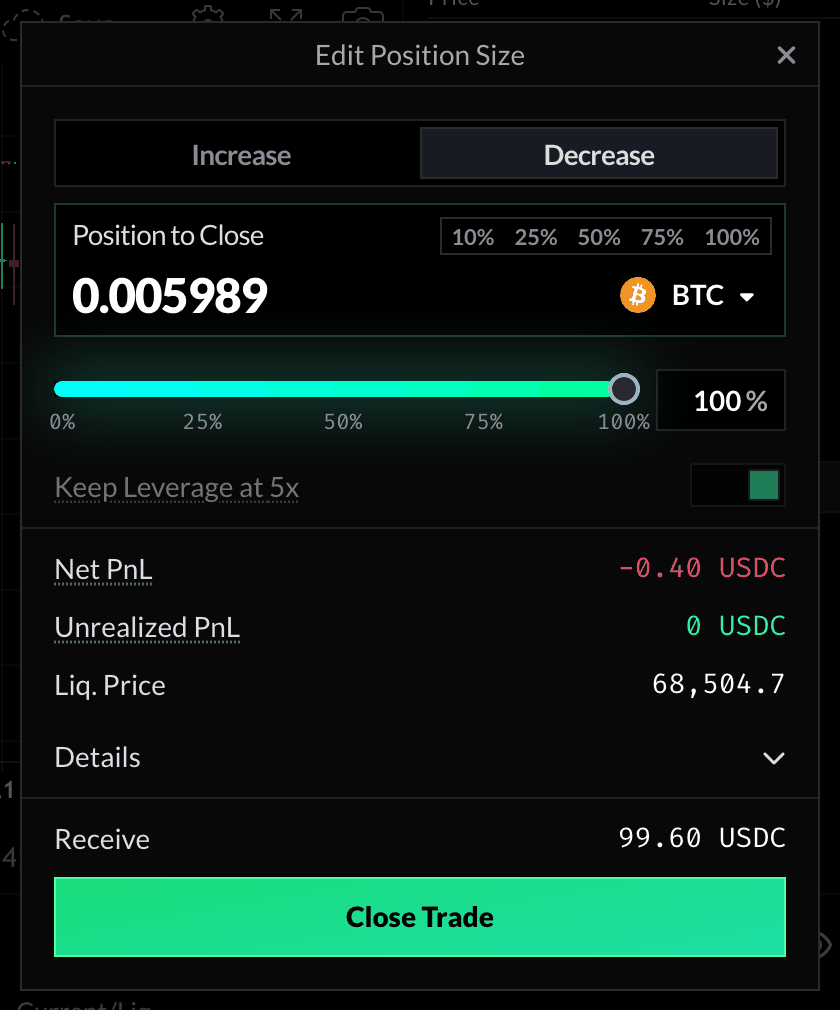
Closing the whole position.
What a trade costs
- Opening and closing fees, a small share of the position size, with a small minimum. The panel shows the opening fee before you trade.
- Spread and price impact, already in the execution price the panel estimates.
- Holding fees, for every hour the position stays open.
- Gas, the network fee: covered by Gains with an instant wallet, paid in ETH with your own wallet.
If something does not work
The panel says Not enough USDC
The panel says Not enough USDC
Your wallet holds less USDC on Arbitrum than the trade needs. Lower the position size, or add USDC through Deposit.
My order did not open
My order did not open
A market order is canceled if the price moves further than your Max Slippage (1% by default, in the summary) before it executes. The USDC comes back to your wallet on its own, less a small fee. If the oracle network does not answer in about a minute, the app shows Open Market Timeout with a Claim Collateral button: click it to get your USDC back before you try again.
Can I lose more than my collateral?
Can I lose more than my collateral?
No. A trade can never cost you more than the collateral you put in it. A liquidation takes all of it, which is why a stop loss, closing the trade before the liquidation price, is worth setting.
Next
Opening and closing trades
The full guide: limit and stop orders, editing a position, partial closes.
Practice Mode
Trade with test USDC from your own wallet, no real money.
Fees & Spread
Every fee, per market.
FAQ
Answers to common questions.